
Installation and first run
Install SecondMindOS
Installation adds the SecondMindOS extension to a supported browser and opens the local workspace for the first time. The complete installation path includes the browser-store release, requested permissions, and the first capture check. Begin with the browser used for the AI conversations that need to be saved. Optional accounts, models, and connectors can be configured after local capture is working.
Install SecondMindOS in the Browser
Browser-store installation loads the extension and makes the sidepanel available beside an ordinary webpage. Verify installation before testing capture or configuring optional services.
Choose The Browser
Open Chrome or Firefox on the computer. Use the browser where you normally read AI conversations.
- Find SecondMindOS in the Chrome Web Store or Firefox Add-ons. Open the listing and choose Add to Chrome or Add to Firefox. Read the requested permissions, then approve the installation.
- Open the browser Extensions menu and select SecondMindOS. Pin the Chrome extension for direct access beside the address bar.
SecondMindOS should open beside the webpage. Next, follow Save the first conversation.
Why the Extension Asks for Permissions
Supported AI conversation capture uses declared host access for ChatGPT, Claude, Gemini, Grok, and Perplexity. Other webpages, PDFs, and API endpoints are accessed only after a capture or connection action grants the required browser permission.
Storage
Keeps the workspace sources, projects, extracted insights, preferences, and integration settings between sessions.
Active Tab and Scripting
Reads the current supported AI conversation, webpage HTML, or visible PDF only after the corresponding capture action is selected.
Tabs and Side Panel
Lets SecondMindOS open the workspace panel beside the current webpage without replacing the active page.
Native Messaging
Starts the optional local Ollama companion only after the local connection action is selected.
Alarms
Runs only the connector schedules enabled in integration settings.
Save the First Conversation
Use one short, completed conversation for the first capture check. Save the conversation manually, then open Chats and verify both the question and the completed provider reply.
- Open one conversation in ChatGPT, Claude, Gemini, Grok, or Perplexity in a normal browser window. Scroll to the final reply and continue when the full text is visible and the website no longer shows a response spinner or Stop button.
- Open SecondMindOS from the browser’s Extensions menu. Go to Settings → Workspace → Capture & Sync and click Sync Now.
- Open Chats in SecondMindOS, choose the conversation, and check that the question and the reply were saved.
If the icon is present but the panel is blank, or capture is incomplete, follow the opening checks and capture checks. Private and incognito capture is disabled.
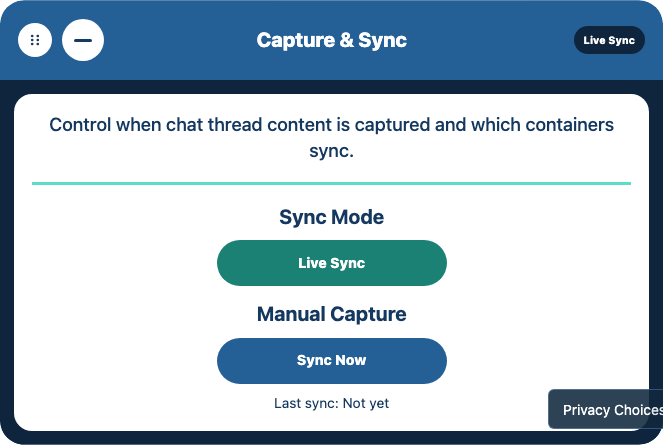
- Sync Mode: Choose whether to capture changes automatically.
- Sync Now: Save the currently open conversation immediately.
Installation and Update Edge Cases
Start with the heading that matches what you see. These checks separate browser policy, build output, temporary Firefox behavior, stale extension code, and workspace migration problems.
The Browser Refuses to Install the Extension
Check whether a work or school administrator manages the browser. Ask the administrator about blocked extensions or site access. Ask whether SecondMindOS is allowed before trying to reinstall SecondMindOS.
For browser-specific help, see Chrome Web Store or Firefox’s add-on installation guide.
Moving Between Browsers, Profiles, Or Computers
On Home in the original browser, select the workspace for transfer. Open Settings, Workspace, then Import and Export and click Download Backup. On the destination browser, choose Import Backup in the same section and select that JSON file. Open a familiar chat and project to check the import before deleting the original copy. Repeat for every workspace included in the transfer. See the backup import guide after a failed import.
Configure Optional Services
You can capture, organize, search, and export locally before configuring AI or a connector. The first AI Chat guides Free users to install Ollama or save their own provider API key in Model Settings. A configured Plus account can choose an available managed or personal model. Pro remains planned. For local AI, install and start a supported service and model using the local setup guide. Check available disk space and memory before approving a model download.
Free product data stays in the browser profile in both the extension and enabled web app pages. An account identifies you, but it does not turn on cloud workspace sync for the Free plan.
For encrypted Drive backups, keep a separate record of the passphrase. After clicking Create Backup, confirm that the Backup result line says Completed and reports the uploaded object count. A backup is a snapshot, not automatic synchronization. Review the backup and restore checks before relying on a copy for migration or recovery.
Review each integration’s implementation status and access requirements before enabling the connection. If setup fails, the support guide explains what to check and which redacted details to send.